Configuring Ubuntu Networking with Netplan (DHCP and Static IP)
Correct Netplan YAML nesting for wired and wireless DHCP and static IP, plus the console recovery checks to do before applying.
This article explains how to configure Ubuntu networking with Netplan. Applying a bad network change to a remote server can cut off access, so prepare console access and test with netplan try before netplan apply. Interface names, SSIDs, and IPs below are examples.
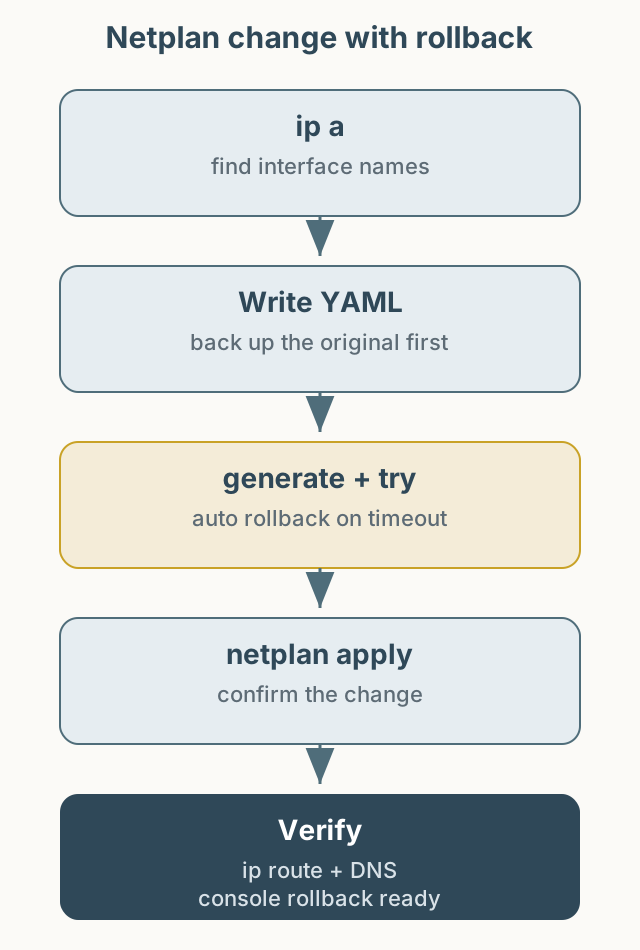
Figure 1. Confirm the interface and prepare recovery before applying a Netplan change.
Find the interface
1
ip a
Identify the wired and wireless interface names. enp3s0 may be wired and wlp0s20f3 wireless, but names vary by hardware and system. Replace the names in the configuration with the real values.
Netplan files are usually under /etc/netplan/. Back up the existing file before editing.
1
sudo cp /etc/netplan/50-cloud-init.yaml /etc/netplan/50-cloud-init.yaml.bak
Wired DHCP
The simplest configuration uses the interface name as a key and dhcp4 beneath it.
1
2
3
4
5
6
network:
  version: 2
  renderer: networkd
  ethernets:
    enp3s0:
      dhcp4: true
Wireless DHCP
For wireless, the interface name goes under wifis, and access-points goes beneath the interface. The old structure that placed the interface name under a fake wlan0 key is invalid. Using wifis with networkd requires the wpasupplicant package, which may not be installed on a server image. Check with dpkg -l wpasupplicant and install it with sudo apt install wpasupplicant if needed. See the Netplan documentation.
1
2
3
4
5
6
7
8
9
network:
  version: 2
  renderer: networkd
  wifis:
    wlp0s20f3:
      dhcp4: true
      access-points:
        "YOUR_SSID":
          password: "YOUR_WIFI_PASSWORD"
The SSID and password are placeholders. Because the file contains a plaintext password, restrict its permissions.
1
sudo chmod 600 /etc/netplan/50-cloud-init.yaml
Static IP
For a static address, set dhcp4: false and provide the address, default gateway, and DNS. The addresses below are documentation examples.
1
2
3
4
5
6
7
8
9
10
11
12
13
14
15
network:
  version: 2
  renderer: networkd
  ethernets:
    enp3s0:
      dhcp4: false
      addresses:
        - 192.0.2.10/24
      routes:
        - to: default
          via: 192.0.2.1
      nameservers:
        addresses:
          - 1.1.1.1
          - 9.9.9.9
A wrong static address can cut off SSH. Confirm that the address is unused on the same subnet and that the gateway is correct.
Validate and recover
Check the syntax first.
1
2
sudo netplan generate
sudo netplan try
netplan try reverts the configuration if you do not confirm within a timeout. That is especially useful during a remote session. After confirming it works, apply it.
1
sudo netplan apply
Verify the state:
1
2
3
4
ip a
ip route
resolvectl status
ping -c 3 192.0.2.1
If access drops, use the server console or a physical keyboard, restore the backup, and run netplan apply again. In a cloud environment, confirm serial console or recovery-mode access beforehand.
Note
Running dhclient directly can also obtain a lease, but it may conflict with Netplan-managed configuration. Using the Netplan configuration is more consistent. The YAML here is an example of the structure; validate it with netplan generate before applying.